
Web Highlighter logo

Web Highlighter — Chrome Extension Development

A browser extension built to highlight, organize, and revisit important information across the web.

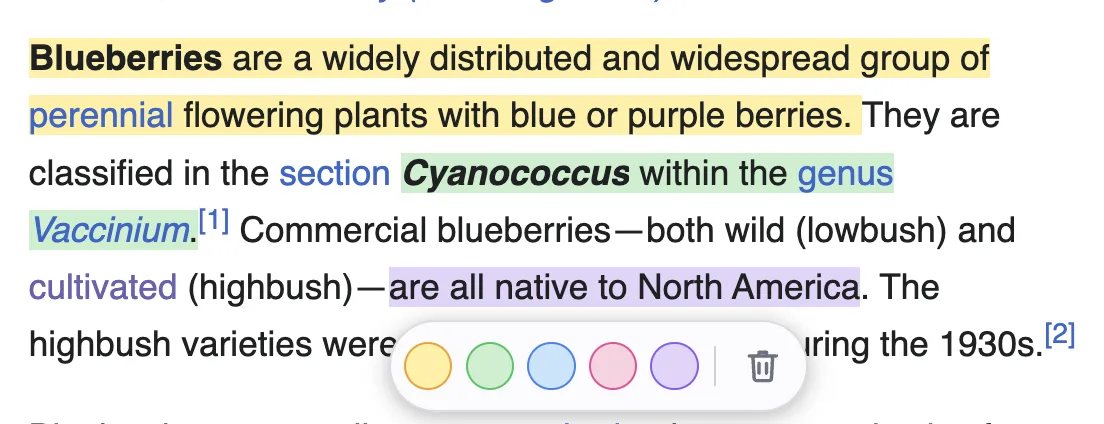
Web Highlighter in use: passages of a webpage highlighted in yellow, green, and purple, with the floating color palette open.
Platform
Google Chrome (Manifest V3)
Built with
WXT, React, TypeScript
Storage
Local to the browser, no account
Languages
English, Spanish

Project overview

Web Highlighter is a free Chrome extension, built and published by Software Sage LLC, for marking up the web the way you’d mark up a printed page. Select text on any website, pick a color, and the highlight is saved. Come back to the page later and it’s still there, in the same place.

The problem: research gets spread across dozens of tabs. Copying quotes into a notes app loses the context they came from, and bookmarks only save the page, not the sentence that mattered. Finding that one line again means re-reading the whole article.

Our approach: keep each highlight on the page it came from, and make every highlight findable from one place. The popup shows the highlights on the current page, a Library of every page you’ve highlighted, and a searchable list of all your highlights. It works without an account or a sign-up, and nothing leaves the browser.

We built it as our own product, which also makes it a reference for clients. It shows the parts of browser extension work that are easy to get wrong: running inside pages we don’t control, keeping data correct across versions, and working within Manifest V3’s limits on popups and background scripts.

Key features

  • Highlight text directly on websites

    Select text on any http or https page and a small floating palette appears beside it. One click marks the selection and saves it.

  • Multiple highlighting colors

    Five colors: yellow, green, blue, pink, and purple. Each is a soft tint, so the page's own text stays readable. Click an existing highlight to change its color or remove it.

  • Keyboard shortcuts

    Alt+1 through Alt+5 highlight the current selection in each color, or recolor the highlight you're editing. Escape closes the palette. Shortcuts never fire while you're typing in a form or editor.

  • Save and organize highlights

    Highlights save automatically and come back in the right place when you return to the page. The popup shows everything on the current page, and you can turn highlighting off for a single page without losing what's saved.

  • Organize highlights by website

    The Library lists every page you've highlighted with its title, site, favicon, and highlight count, newest activity first. Open a page to see its highlights, or delete a whole page at once.

  • Search saved highlights

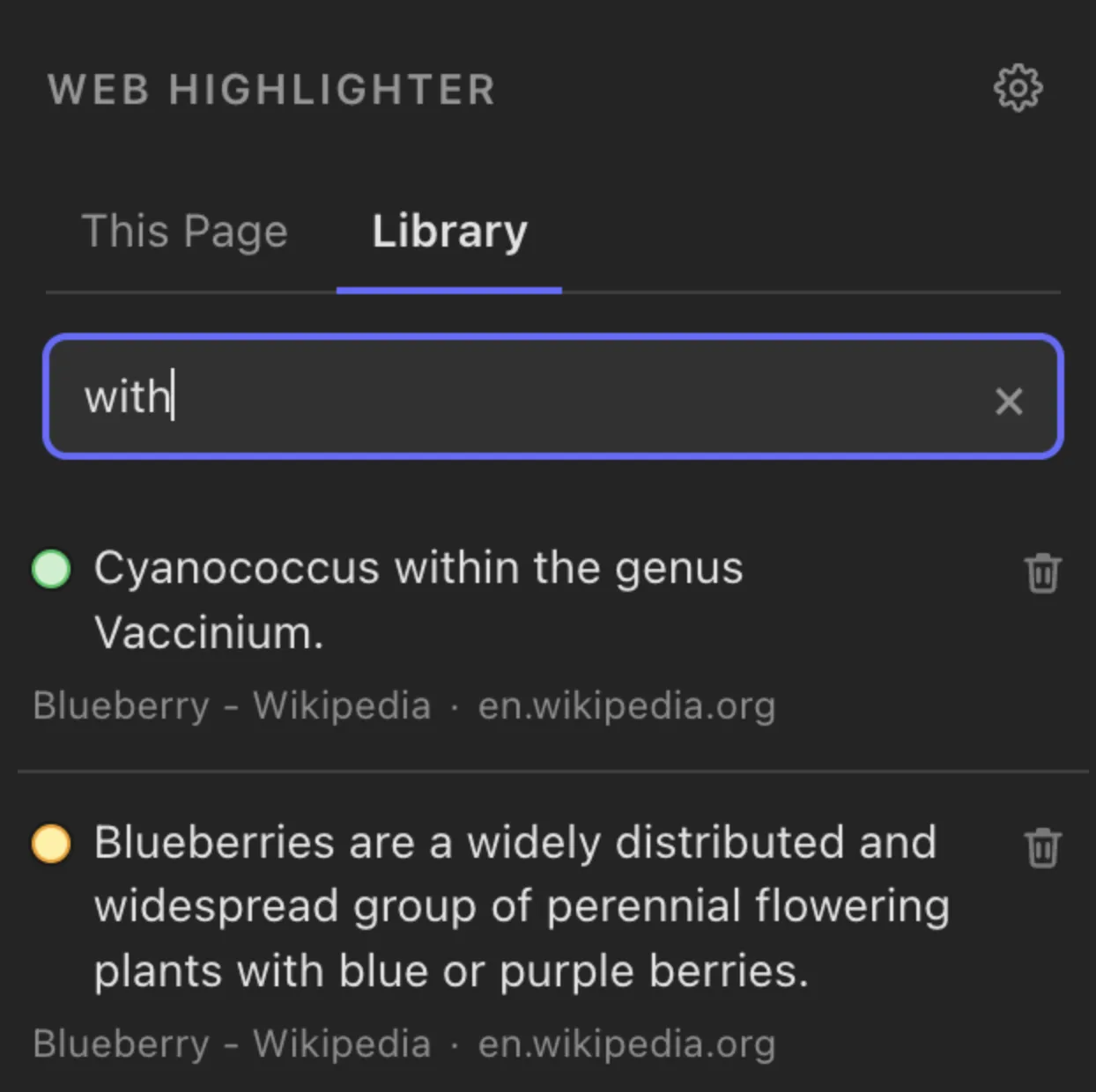
    Search matches the highlight text, the page title, and the site name, so typing a domain brings up everything saved from that site. Click a result to open the page and scroll straight to that highlight.

How it's built

Technical implementation

Extension architecture

Web Highlighter is a Manifest V3 extension built with WXT, React, and TypeScript. It has four parts:

  • A content script runs on http and https pages. It handles selection, the floating color palette, keyboard shortcuts, and restoring saved highlights.
  • A React popup has three tabs: This Page, Library, and All Highlights.
  • A background service worker opens an onboarding page on first install only, not on updates.
  • A React onboarding page welcomes new users.

The popup and content script talk through typed runtime messages: scroll to a highlight, delete a highlight, or clear a page. Both sides share one definition of that format, so neither can send a message the other doesn’t handle.
Browser APIs and permissions

The extension asks for a small set of permissions:

  • storage, for saved highlights and settings.
  • activeTab, for the page the popup is opened on.
  • tabs, so opening a saved page can switch to a tab that already has it open instead of opening a duplicate.
  • favicon, to show each site’s icon in the Library.

It recognizes pages it can’t run on, such as browser pages, the Chrome Web Store, and PDFs in the built-in viewer. The popup explains why instead of showing an empty list.

Storage

Highlights live in chrome.storage.local, in one versioned record keyed by page URL. The #fragment is dropped from the key, so /article and /article#section-2 count as the same page. The query string is kept, because a different query usually means different content.

Every write reads the current store and builds a new object instead of editing what came out of storage. A page record is deleted once its last highlight is removed. Fields added in later versions, like color and character offsets, are optional, so highlights saved by older versions still load without a migration.

Nothing is sent to a server, and there’s no account. Highlights stay in the user’s browser.

How highlighting works

Each highlight is drawn by wrapping the selected text in <mark> elements. A selection that crosses a link, bold text, or a paragraph break becomes several marks that share one ID, so they recolor, flash, and delete together.

The extension never touches innerHTML and never rebuilds the page’s own elements. Removing a highlight unwraps the marks and rejoins the split text, which leaves the page exactly as it was before.

Marks set their own text color, so highlights stay readable on dark-themed sites.

Development challenges

  1. 01

    Finding a highlight again after the page reloads

    The problem

    A saved highlight has to reappear on the right words the next time the page loads, even if the page's markup has changed in between. And the same phrase can appear more than once on a page.

    How we solved it

    Each highlight is saved by its text, not by its position in the page's HTML. The extension stores the selected text, up to 40 characters on each side of it, which occurrence of the text it was, and where it starts and ends in the page's visible text. When the page loads, the extension finds every place that text appears and scores each one by how much of the surrounding text still matches. The best match wins, and the saved occurrence number settles ties. If one highlight can't be placed, the others still restore.

  2. 02

    Highlighting without breaking the page

    The problem

    A simple approach to wrapping a selection pulls content out of the page and puts it back. That moves the page's elements around, leaves empty fragments behind, and gets worse each time a highlight is added and removed.

    How we solved it

    The extension wraps each piece of text separately, splitting the text only at the selection's edges, and leaves every surrounding element alone. Removing a highlight reverses this exactly and rejoins the split text, so adding and removing highlights repeatedly leaves the page as it was. Duplicate checks stop the same span from being saved twice, while overlapping or partial highlights are still allowed.

  3. 03

    Opening a page from the popup and scrolling to the highlight

    The problem

    Clicking a saved highlight in the Library should open its page and scroll to it. But a Chrome popup closes the moment another tab gets focus, which stops the popup's code mid-way. A new tab also isn't ready to scroll until its highlights have been restored.

    How we solved it

    If the page is already open, the popup tells that tab to scroll right away and switches to it as its very last step. Otherwise it saves a short-lived request in session storage before opening the tab. The new page reads that request once its highlights are restored, uses it once, and ignores it if it's more than 30 seconds old. Session storage isn't readable by content scripts by default in Chrome, so the background worker grants that access when the extension starts.

Screenshots and demo

A Wikipedia article about blueberries with passages highlighted in yellow, green, and purple, and Web Highlighter's floating palette of five color swatches and a delete button below the text.
Highlights in three colors on a live page, with the palette open for editing a highlight.
The Web Highlighter popup's Library tab, searching for the word 'with'. It shows two saved highlights, each with its color dot, the highlighted text, and the page title and site it came from, en.wikipedia.org.
Library search, matching saved highlight text, page titles, and site names.

See it in motion: there’s a short demo video on the Web Highlighter website (opens in a new tab).

Looking to build a Chrome extension or custom software product?

We design, build, and publish browser extensions, mobile apps, and web platforms, all quoted at a fixed price before any code is written.